Cimmich

Cimmich · Guide

Explore the product

See your library become easier to know.

Start with matching, then follow the people, places and records around a memory. When you want the exact clicks, open the steps without leaving the page.

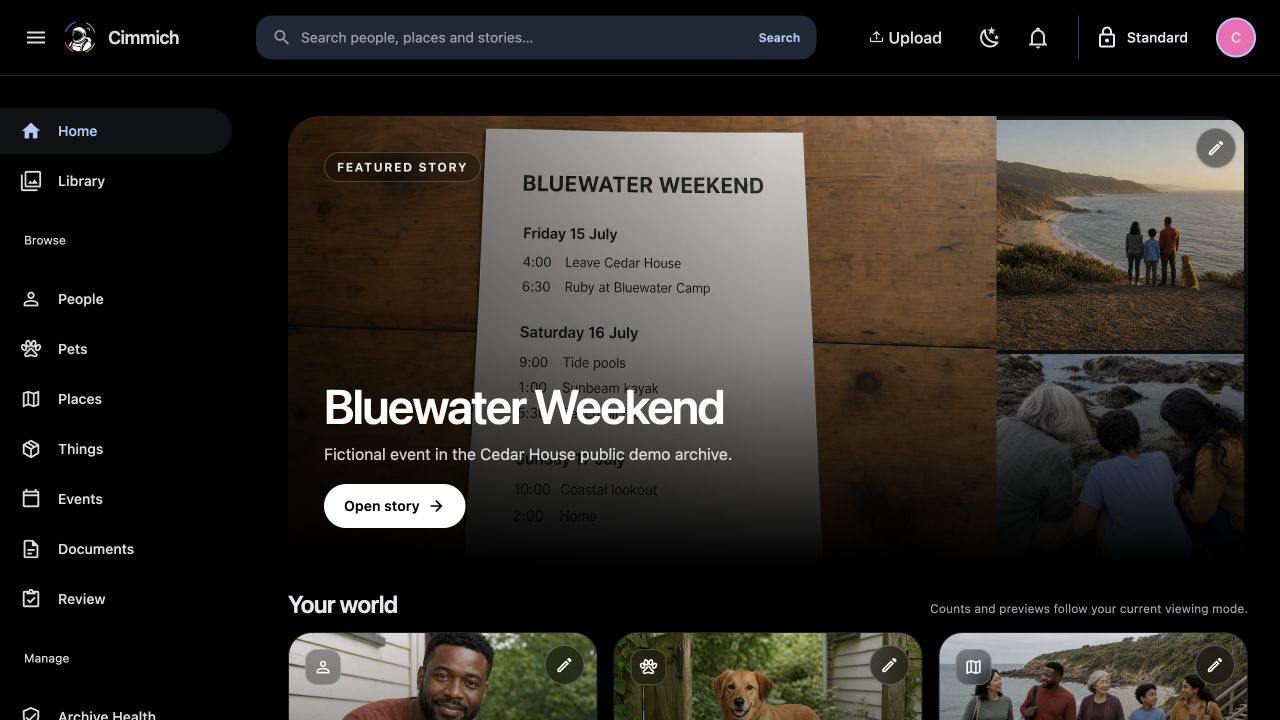
The dark Cimmich Frontier Workspace home with its single Cimmich sidebar and populated library.
Frontier Workspace gives Cimmich its own focused home and navigation.
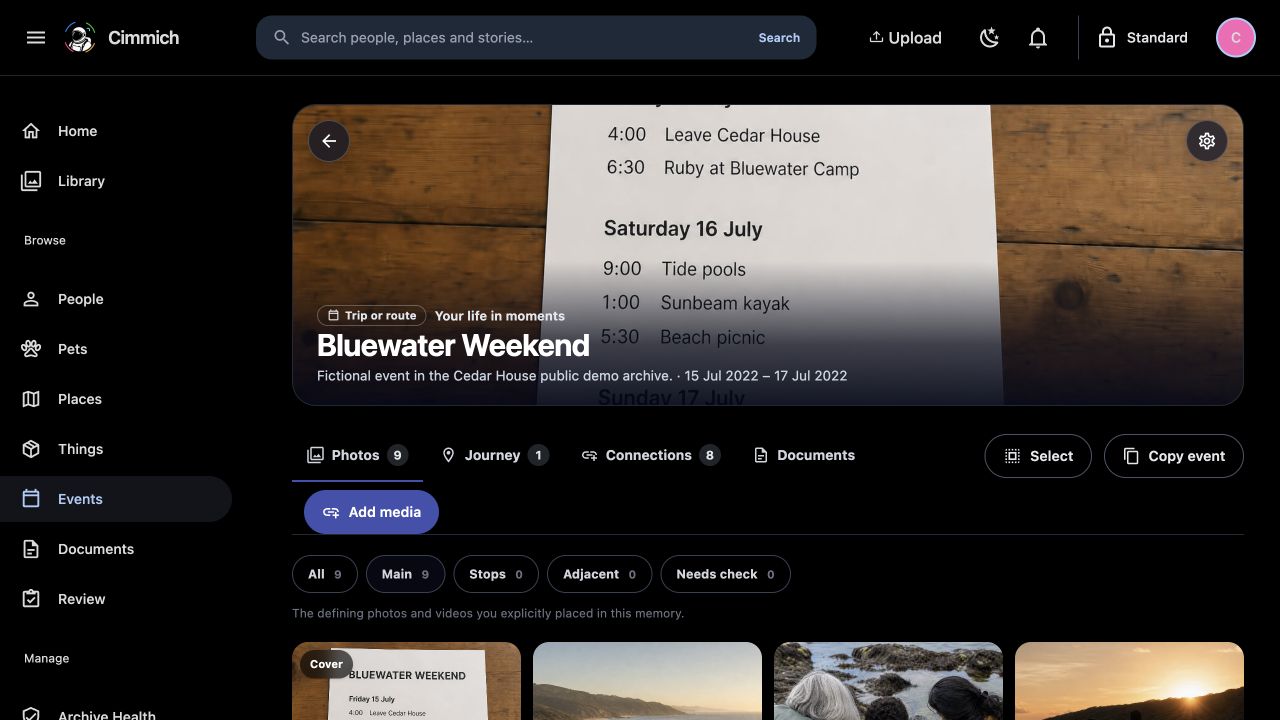
Bluewater Weekend open in the dark Cimmich Frontier Workspace with photos and connected context.

The full Cimmich experience

Stay inside Cimmich.

Frontier Workspace gives Cimmich its own Home, Library, Browse, Review and Settings navigation while keeping the same connected Immich library underneath.

Turn on Frontier Workspace

Open Settings, find Frontier Workspace, then choose Use Frontier Workspace. You can return to the familiar sidebar from the same setting at any time.

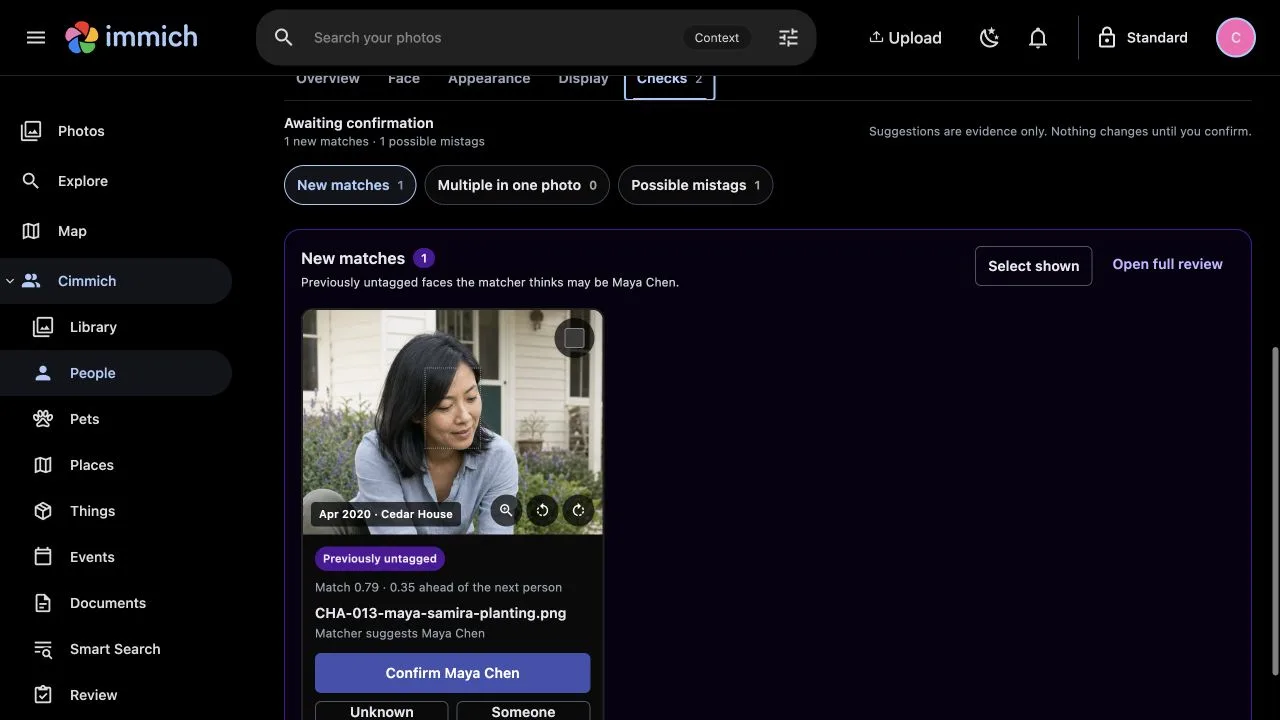
Cimmich suggesting Maya Chen for a previously untagged face.

Matching that improves

Confirm who it is. Refresh. Review what comes back.

Cimmich finds the possibility. You say yes, no or someone else. Refresh searches again using the evidence you have confirmed and corrected.

Why Refresh can find more

Each decision changes the evidence Cimmich can trust. Refresh rebuilds that person's Core matching set from confirmed Faces, searches again with the current calibrated policy, then returns any New matches or Possible mistags it finds.

If no further possibilities are ready, the queue can remain empty. You can return after adding or correcting more evidence.

Open the exact matching steps
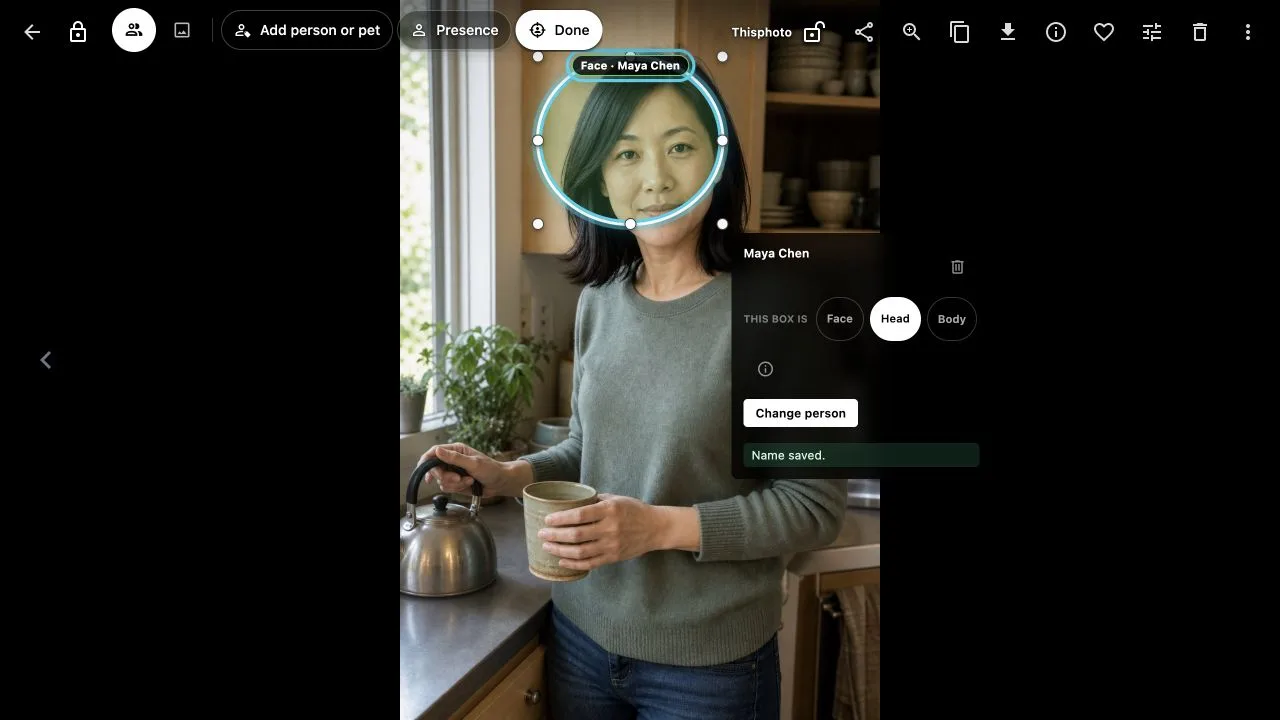
Maya Chen remaining tagged while her selected region changes from Face to Head.

Keep the person

Fix the evidence without losing the tag.

A difficult photo can still belong to Maya even when it should not teach the Face matcher. Change only the evidence; the person stays connected.

Face, Head, Body and Presence

FaceA usable face that can support matching.

HeadA visible head without enough facial detail.

BodyAn appearance or body placement.

PresenceYou know they were there without a usable region.

Open the exact evidence steps
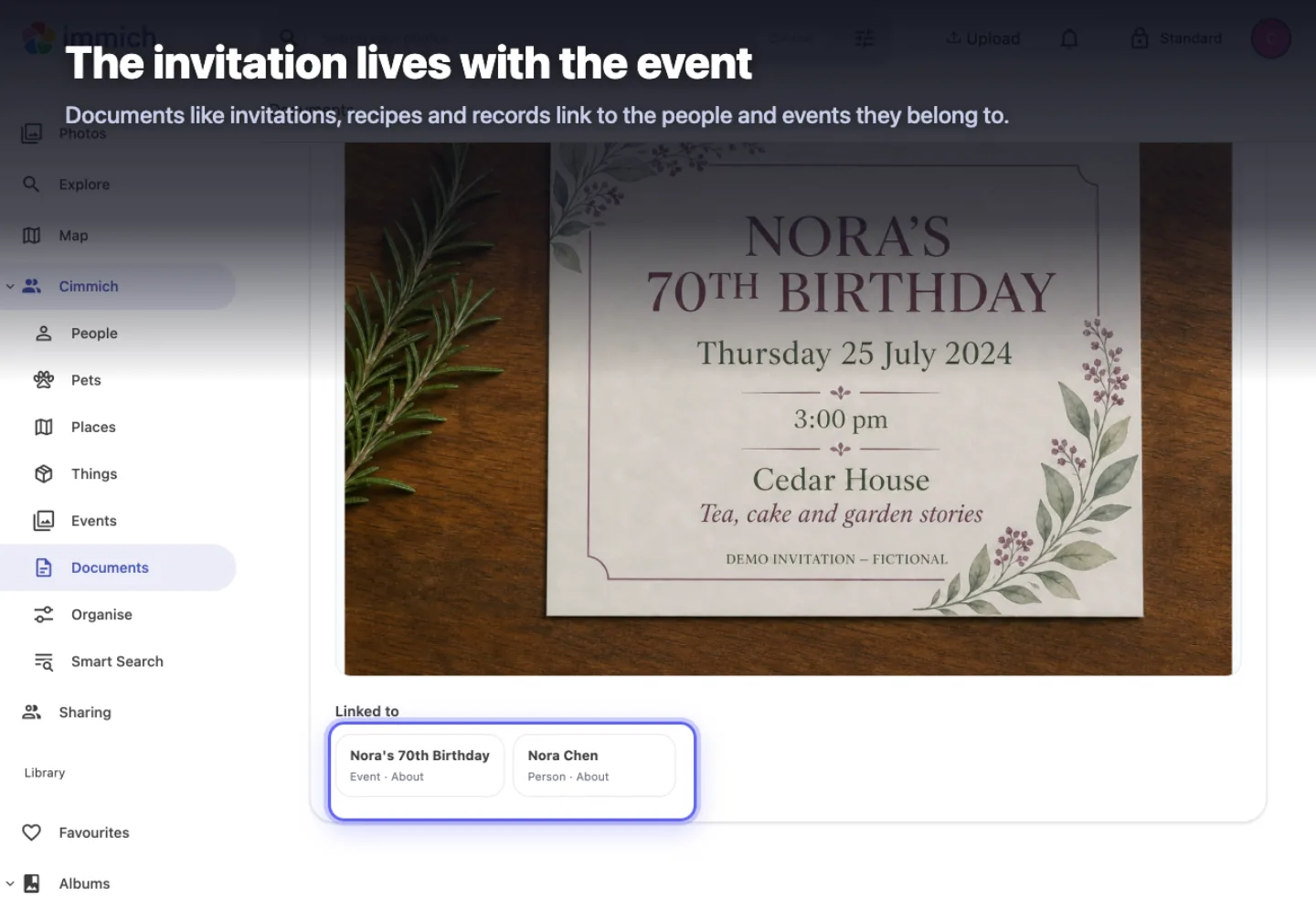
An invitation connected to an event and people in Cimmich.

Connected memory

Enter the same moment from any side.

Bring an event, its photographs, people, places, journey and documents together. Correct one record and every connected view uses the current version.

What becomes connected

Open the occasion from a person, return through a place, or keep an invitation beside the day and people it explains. Cimmich keeps the links in its own database beside Immich.

Open the exact event and document steps
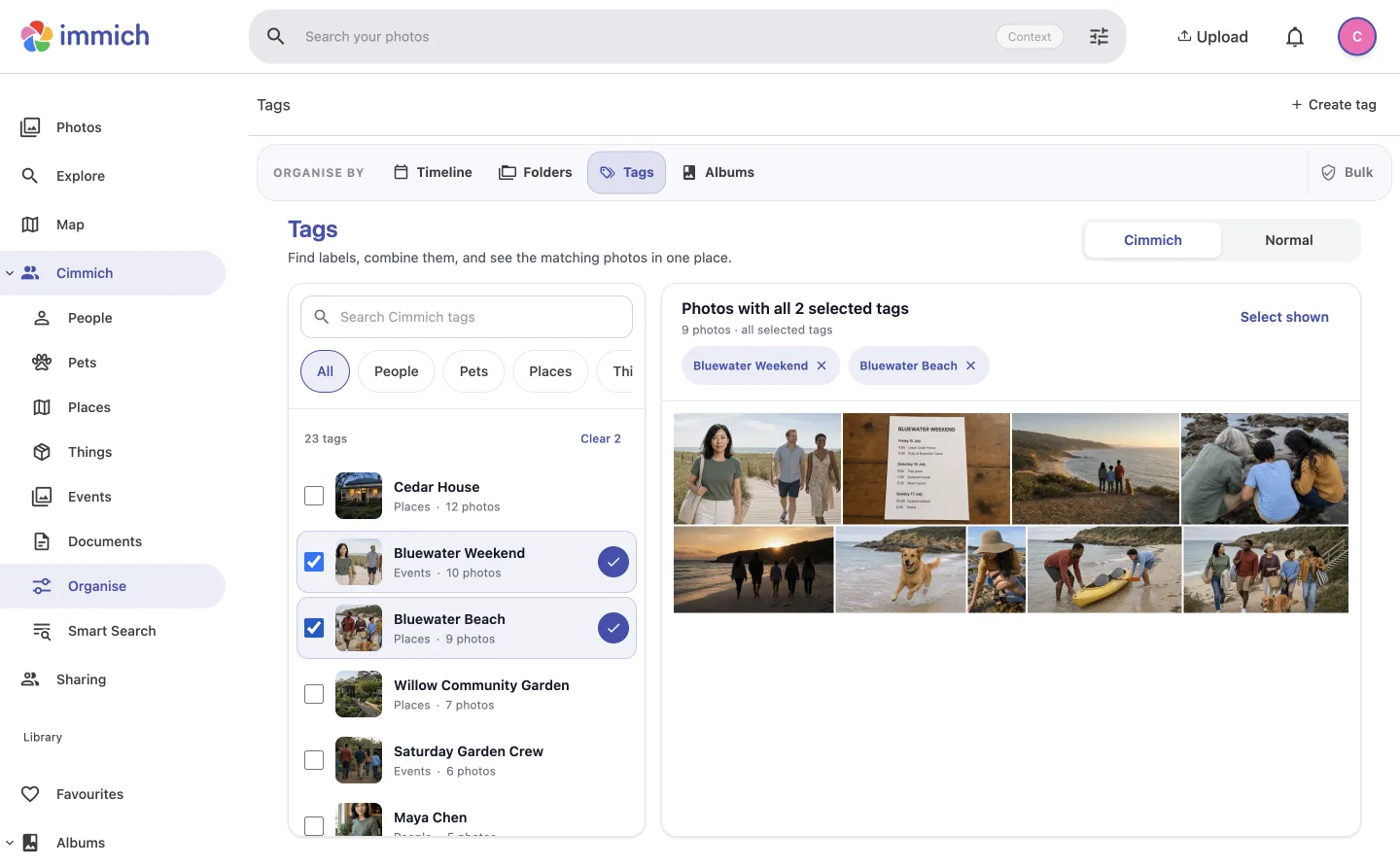
Cimmich showing photographs carrying both Bluewater Weekend and Bluewater Beach.

Find the overlap

Ask for the memory, not another folder.

Combine confirmed people, pets, places, things and events to see only photographs carrying every context you selected.

Search or exact filters?

Use Smart Search for a recorded name or date. Use Library filters when several confirmed facts must all be present. Bookmark the filtered URL when you want the same view again.

Open the exact search steps
Browse the guide

Step-by-step guide

Choose what you want to do.

Each chapter starts with the result. Open the exact steps only when you need them.

Community Preview 18 · exact Immich 3.1.0 · tested macOS and Linux Docker hosts

Task 01

Connect your Immich library

Cimmich reads the library you already use and records its own inventory in its own database.

Before you startInstall the named Preview 18 release and create the dedicated read-only Immich API key described in the install guide.
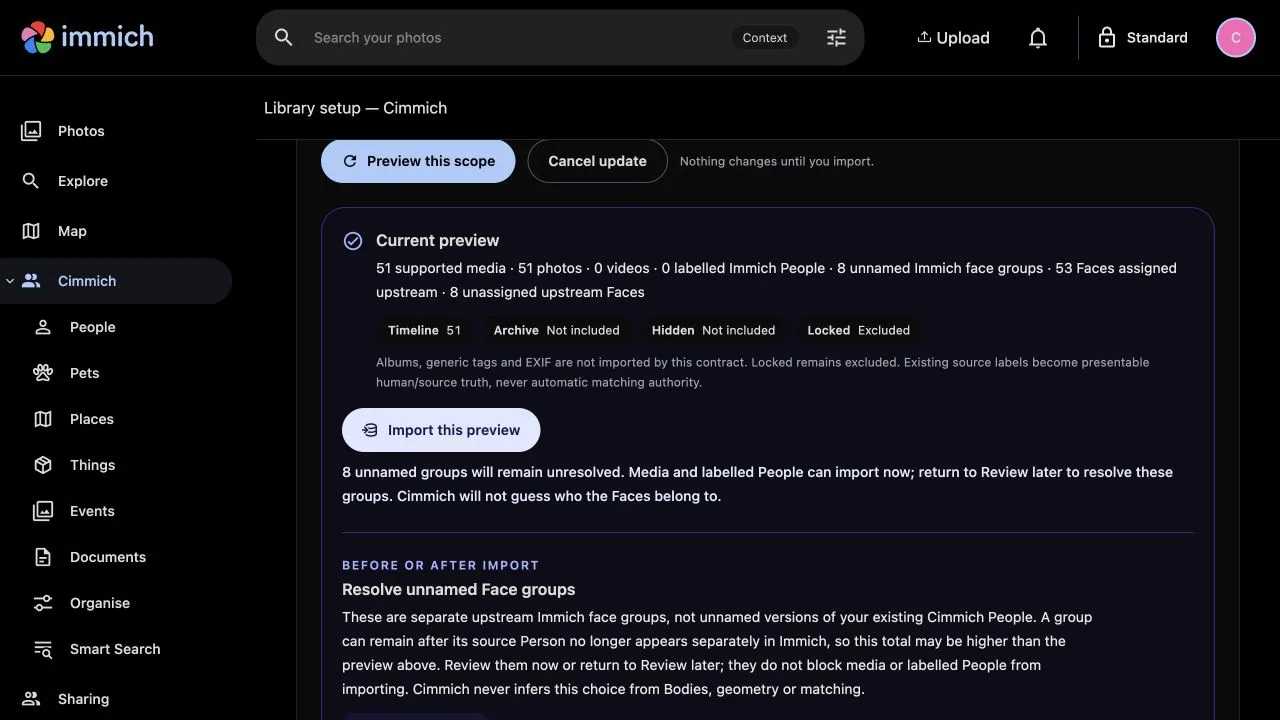
Cimmich showing the account, permissions, library areas and counts before import.
Check the exact account and scope before the library inventory is imported.
Show exact connection steps
  1. Open Cimmich.Go to http://127.0.0.1:3413 and sign in with your existing Immich account.
  2. Open Settings, then Library connection.Paste the dedicated read-only API key. If you no longer have it, return to the install guide and create a new one with the listed permissions.
  3. Preview the connection.Confirm the Immich account, included library areas and photo counts.
  4. Import the inventory.Cimmich records what it can see in its own database. It does not create albums in Immich or move your media.
You are done whenHome shows your library and the main Cimmich sections open without a setup warning.
If it does not workConfirm Immich opens normally, the key is still valid, and the address is reachable from Docker. Then use Fix a problem.

Task 02

Review and improve people matching

Cimmich is the matcher. A configured Face-analysis provider extracts observations and embeddings; Cimmich uses your confirmed evidence to find the next possibilities.

Before you startOpen Settings → Models & Guided → Local Face matching. Connect the Face-analysis provider, turn on Enhanced, then follow the single current-action button until Face matching shows Ready and Reference library names the library in use.
Maya Chen's Identity Checks showing New matches and Possible mistags.
New possibilities and doubtful existing tags wait together on the person.
Show exact matching steps
  1. Open People and choose a person.Open Identity, then Checks.
  2. Review New matches.Open the photo and region. Choose Confirm, Someone else or Unknown person.
  3. Review Possible mistags.These are existing tags where another person fits better or the Face sits far from this person's confirmed evidence.
  4. Use Refresh matches on this person.After your yes, no or evidence correction, Refresh asks Cimmich to search again with the updated evidence.
  5. Review what comes back.If more possibilities exist, they return to New matches or Possible mistags. Repeat the loop until you want to stop.
You are done whenYou have reviewed the current queue. An empty queue means Cimmich has nothing else ready for this person now, not that every photo has been identified.
About the Cedar House demo

Cedar House shows the controls and connections using generated fictional people. Its matching suggestions may be sparse or unusual and are not a matching-quality benchmark.

Task 03

Keep the person and fix the evidence

A person can belong in a difficult photo without that region becoming Face evidence.

Maya Chen remaining tagged while the selected region changes from Face to Head.
Maya stays attached to the photo. Only the evidence type changes.
Show exact evidence steps
  1. Open the person, then Identity.Use Checks for a doubtful tag or Face and Appearance to inspect accepted evidence.
  2. Open the exact photo and region.Judge the selected region, not only the full-photo thumbnail.
  3. Choose what is actually visible.Use Face for a usable face, Head when the head is visible without enough facial detail, Body for appearance, or Presence when you know the person was there without a usable region.
  4. Save the correction.The person tag stays. Head, Body and Presence do not teach the Face matcher from unsuitable evidence.
  5. Refresh matches.Return to the person's Checks view and run Refresh so Cimmich can search again with the corrected evidence.
You are done whenThe photo still belongs to the person and its badge describes the evidence you intended.

Task 04

Browse and organise the Library

Library keeps the familiar photo timeline and adds Cimmich's organisation around it.

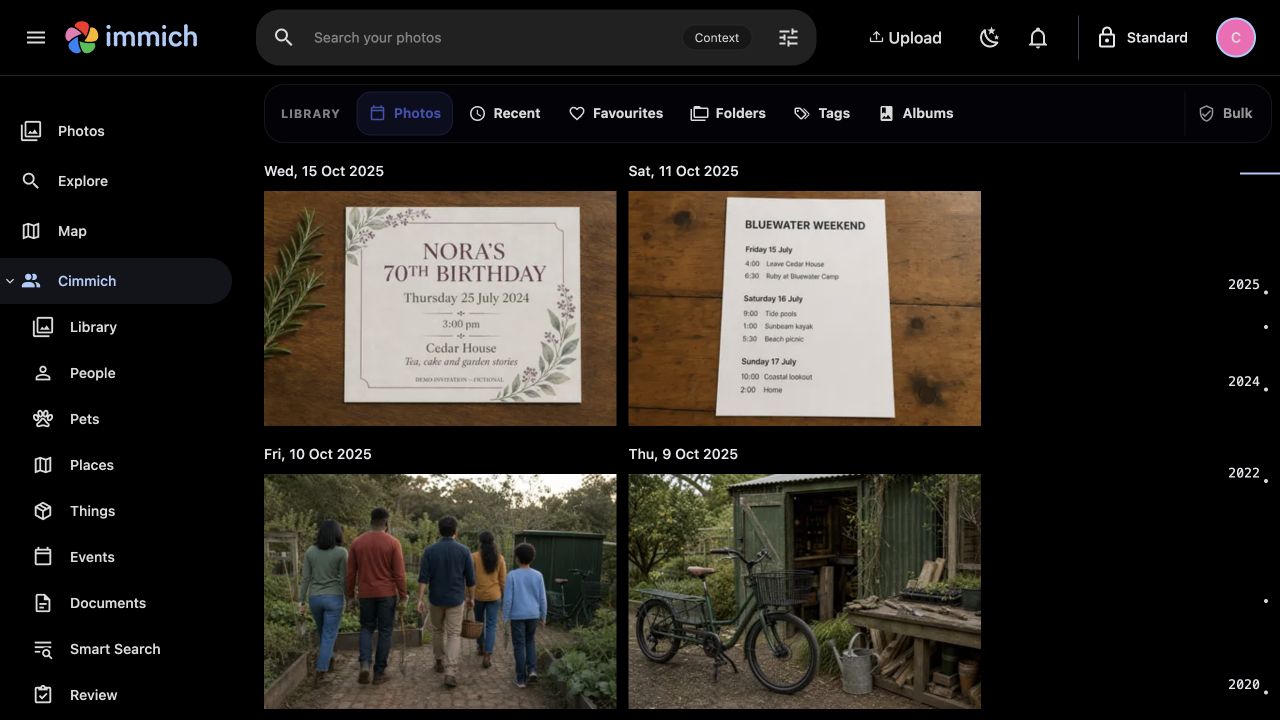
The Cimmich Library with Photos, Recent, Favourites, Folders, Tags, Albums and Bulk views.
Choose the view that matches the job before selecting photos.
Show exact Library steps
  1. Open Library.Choose Photos, Recent, Favourites, Folders, Tags or Albums.
  2. Narrow the set.Use people, pets, places, things, events, tags, labels and dates. Several selected Cimmich filters narrow to photos carrying all of them.
  3. Open one photo to inspect it.The viewer keeps the current result set, so Previous and Next stay inside the same context.
  4. Use Bulk for a reviewed group action.Preview the target photos, apply the Cimmich labels, collections, favourites or archive choices you want, and review the result.
  5. Undo if needed.Undo removes only what that Cimmich operation added. Source files are not moved.
You are done whenThe intended photos appear under the chosen Cimmich filter or collection.

Task 05

Keep a person or pet together

Bring the photos, names, suggestions, connections and documents for someone you know into one profile.

Maya Chen's Cimmich profile bringing her photographs, identity, connections and documents together.
One profile keeps the photographs and records around Maya connected.
Show exact people and pet steps

People

  1. Open People and choose a named person.
  2. Use Photos for accepted appearances.
  3. Use Identity for Overview, Face, Appearance, Display and Checks.
  4. Use Details for names, aliases and the owner-written profile.
  5. Use Connections for linked people, events, places and things.
  6. Use Documents for the records connected to that person.

Pets

  1. Open Pets and choose Add pet, or open Unknown.
  2. Give the pet a name and optional species, breed, aliases and description.
  3. Assign selected unknown observations to the pet, create a new pet, or ignore the lead.
  4. Open the pet to review photos, suggestions, connections, documents and its display image.
You are done whenThe profile opens with the right current name and the photos or records you intended.

Task 06

Add a place or thing you remember

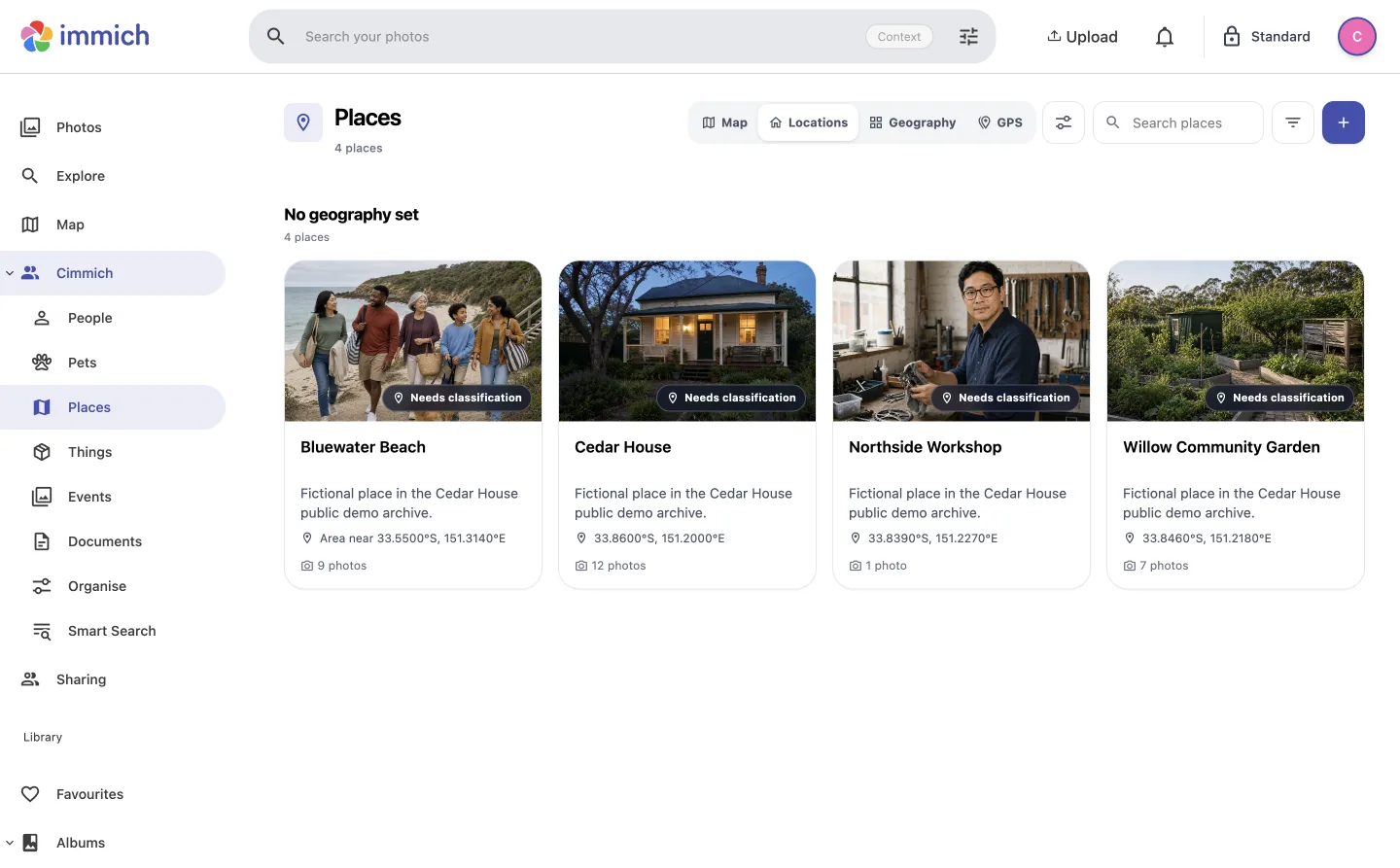
The Cimmich Places directory with named locations and photo counts.
A named place can connect photos even when the source file has no GPS.
Show exact place and thing steps

Places

  1. Open Places and choose Add place.
  2. Add a name, description and the location detail you know.
  3. Attach confirmed photos or review GPS suggestions.
  4. Use Map, Locations, Geography or GPS to return to it later.

Things

  1. Open Things and create or choose a thing.
  2. Add its current name, aliases and description.
  3. Attach the photos where it matters.
  4. Use the thing later as a Library filter or Smart Search term.

Task 07

Build an event and keep its records nearby

An event joins the photos, journey, people, places and documents of one memory.

Bluewater Weekend with Photos, Journey, Connections and Documents.
Bluewater Weekend can be entered through its photos, people, places or invitation.
Show exact event and document steps
  1. Open Events and choose Add event.Add the name, kind, date or date range, and the description you remember.
  2. Add media.Choose the photos that define the event. Use Main, Stops, Adjacent and Needs check to describe their role.
  3. Add the journey and connections.Connect its places and people so the memory can be entered from either side.
  4. Add a document.Open Documents, import the invitation, receipt, letter or other record, then connect it to the event and relevant people.
  5. Choose the cover.Return to Photos and select the image that should represent the event.
You are done whenThe event opens with its intended Photos, Journey, Connections and Documents.

Task 08

Find a memory

Use Smart Search for recorded names and dates. Use Library filters when you want an exact intersection of confirmed context.

Show exact search and filter steps

Search one recorded fact

  1. Open Smart Search.
  2. Choose Photos or All documents.
  3. Enter an exact recorded person, pet, place, thing, event or date.
  4. Run Search and open What matched to see what Cimmich understood.
  5. Correct or remove unresolved words, then search again.

Require several facts at once

  1. Open Library.
  2. Open the filter control.
  3. Select the person, place, event or other confirmed context you need.
  4. Add the next filter. The result keeps only photos carrying every selected filter.
  5. Bookmark the filtered URL if you want to return to the same view.
Cimmich Library results carrying both Bluewater Weekend and Bluewater Beach.
The Library keeps only photos carrying both selected contexts.
You are done whenThe result explanation or active filters name the same facts you intended to use.

Task 09

Change what is comfortable to show

Standard, Personal and Private change the visible ceiling across thumbnails, names, counts, search and connected records.

Show exact viewing-mode steps
  1. Open the viewing-mode control.Use the control in the top bar or open Settings → Viewing mode.
  2. Choose Standard, Personal or Private.Cimmich updates every connected view to the chosen ceiling.
  3. Move through the library normally.Private continues across related Cimmich and photo routes until you exit it or its lock policy ends it.
  4. Exit the mode when the room changes.Use the same control to return to a lower viewing level.
You are done whenThe mode shown in the top bar matches the level you intended.
Presentation, not another account

Private is a screen-presentation mode. It is not encryption and does not replace Immich account access.

Task 10

Check copies, folders and an independent backup

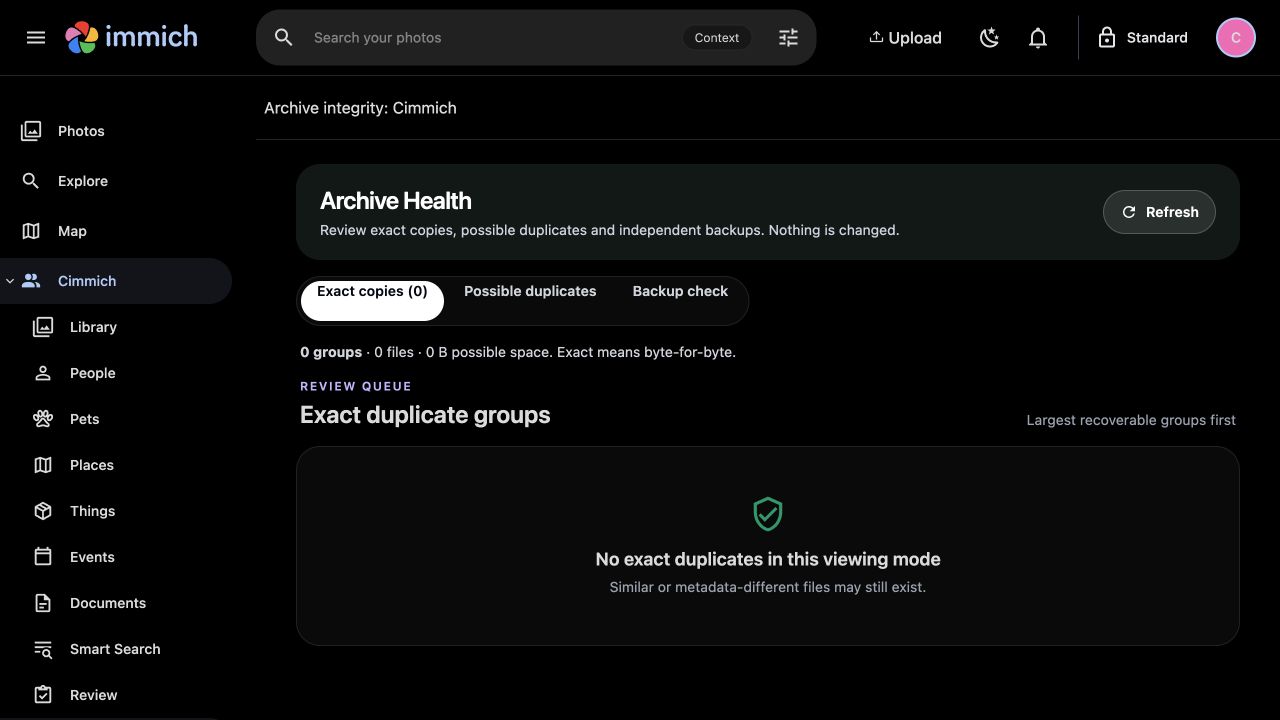
Archive Health explains what the evidence proves and stops before any file operation.

Archive Health with Exact copies, Possible duplicates and Backup check.
Exact copies, possible duplicates and backup proof are separate questions.
Show exact archive-check steps
  1. Open Archive Health.Choose Exact copies for byte-for-byte duplicate groups or Possible duplicates for related files that require comparison.
  2. Open a group.Compare the images, paths, dates and evidence before deciding what the group means.
  3. Use Folder Check from the Cimmich sidebar.Select one folder to see where its contents overlap the rest of the archive.
  4. Configure Backup check once.From the extracted release folder, export the installer-managed state root and the three values for your independent destination, then start the supplied read-only override with the runtime environment.
  5. Return to Backup check.Select the read-only destination and run the comparison.
export CIMMICH_COMPANION_STATE_ROOT="${XDG_STATE_HOME:-$HOME/.local/state}/cimmich-companion" export CIMMICH_BACKUP_SCAN_PATH=/mnt/independent-photo-backup export CIMMICH_BACKUP_SCAN_LABEL='Primary NAS backup' export CIMMICH_BACKUP_STORAGE_DOMAIN='nas-volume-photos-1' docker compose --env-file "$CIMMICH_COMPANION_STATE_ROOT/runtime.env" -f compose.yaml -f compose.backup-scan.yaml up -d

Replace the example path, label and storage-domain ID with the independent destination you intend to check. The destination is mounted read-only at /backup/primary.

Read the labels literallyExact copy means identical bytes. Possible duplicate is a review lead, not proof that either file is safe to remove.

Task 11

Back up, update, move or remove Cimmich

Run these commands from the directory where you extracted the named Cimmich release.

Show backup, update, move and removal commands

Export the state root once in this terminal before using the lower-level operator:

export CIMMICH_COMPANION_STATE_ROOT="${XDG_STATE_HOME:-$HOME/.local/state}/cimmich-companion"

Back up before a change

./tools/companion.sh status ./tools/companion.sh backup /absolute/new/backup-directory

A successful backup reports "status":"READY". It contains Cimmich's database, documents, configuration and provider state. It does not back up Immich media.

Update safely

Download and verify the next named release, read its compatibility notes, then run from the new release folder:

./tools/install.sh --check ./tools/install.sh --resume ./tools/install.sh --status ./tools/companion.sh doctor

The update is complete only when status and doctor report the expected release, compatible schema and healthy services.

Restore a full backup

./tools/companion.sh restore /absolute/backup --confirm=cimmich-companion ./tools/companion.sh doctor

Restore replaces Cimmich state with the checked backup. Continue only after it reports "status":"RESTORED" and doctor reports healthy. Keep both receipts.

Move or remove

./tools/companion.sh portable-export /absolute/new/export-directory ./tools/companion.sh portable-restore /absolute/export --confirm=cimmich-companion ./tools/companion.sh remove --confirm=cimmich-companion

Portable export reports READY; portable restore reports RESTORED; removal reports REMOVED. Portable export excludes original media, Immich credentials and provider artifacts. Removal deletes Cimmich-owned state only; it does not remove Immich or original media.

Task 12

Fix a problem without starting over

Start with the visible state and the named diagnostic before rebuilding, restoring or removing anything.

Show troubleshooting steps and commands
  1. Confirm the viewing mode.A lower mode can correctly hide photos, names and counts.
  2. Open the exact photo or evidence group.Do not diagnose a region from the thumbnail alone.
  3. Check whether you are viewing a suggestion or an accepted record.A suggestion has not changed the archive.
  4. Use the visible retry once.Do not recreate the stack as a first response.
  5. Run the operator checks.From the extracted release directory, run the commands below.
export CIMMICH_COMPANION_STATE_ROOT="${XDG_STATE_HOME:-$HOME/.local/state}/cimmich-companion" ./tools/install.sh --status ./tools/companion.sh doctor

Install stopped

Fix the reported problem, then run ./tools/install.sh --resume.

First start looks stuck

A cold build can take several minutes. Check status before doing anything else.

Cimmich cannot reach Immich

Use an address Docker can reach, without /api, credentials or a query string.

Person suggestions look stale

Open that person's Identity Checks and use Refresh matches after reviewing the latest evidence.

Backup Check has no destination

Complete the read-only backup-scan configuration in Task 10.

If the problem remains, use the repository's issue forms. Review the redacted doctor output before sharing it. Report security problems privately through Security Policy.

You are done whenThe reported status is healthy, the intended screen loads, or you have a reproducible report with the exact release and redacted diagnostic output.

Ready to begin?

Start with the checked release, then keep this guide open.

Preview 18 requires exact Immich 3.1.0. The guided install has been tested on macOS and Linux Docker hosts.

Kourai Khryseai

Explore what else we’re building.

Cimmich began with a simple idea: your photo library should remember more than filenames and faces. It’s one of the projects taking shape at Kourai Khryseai.

Explore Kourai Khryseai